
SketchUp AI Rendering: Fast Client-Ready Images
It is late, a deadline is creeping closer, and the render bar in V-Ray or Lumion is still crawling across the screen. Many design pros know that feeling of waiting hours for one image, then realizing it needs another round of tweaks. SketchUp models are ready, but getting them into a polished render can drain an entire afternoon.
SketchUp AI rendering flips that experience. Instead of wrestling with settings, lighting rigs, and complex materials, AI takes your SketchUp views and turns them into photorealistic images in minutes. No deep rendering skills, no high‑end workstation—just fast visuals that still respect your design intent.
This guide explains what SketchUp AI rendering is, how native SketchUp tools and browser-based platforms work, and where VizCloud fits as an all-in-one option. By the end, architects, interior designers, technologists, BCIN designers, and real estate pros will know how to speed up visualization workflows and turn SketchUp files into client-ready imagery without the usual stress.
Key Takeaways
SketchUp AI rendering is fast and visual-first. It turns SketchUp views, concepts, and even rough models into photorealistic visuals in minutes instead of hours by automating lighting, materials, and post-processing while following the geometry from your original model.
You can work inside SketchUp or in the browser. Native AI tools live in SketchUp, while web platforms such as VizCloud run in a browser using cloud computing. That gives you options whether you prefer to stay inside SketchUp or upload exported images.
Cloud-based SketchUp AI rendering cuts hardware and skill barriers. You can work from a regular laptop or tablet and still show polished exteriors, interiors, and staged spaces. VizCloud adds an all-in-one toolkit for exterior, interior, and virtual staging work so different roles on a project can share the same platform.
What Is SketchUp AI Rendering and Why Does It Matter?

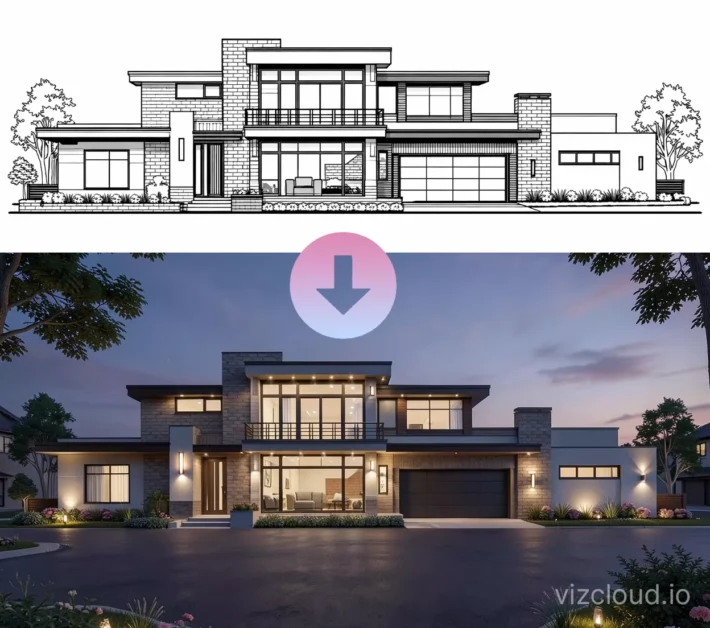
SketchUp AI rendering uses artificial intelligence to take your SketchUp 3D model or exported view and convert it into a realistic image with very little manual setup. The AI engine reads shapes, perspective, and basic materials, then calculates lighting, reflections, shadows, and texture detail for you. With a few clicks, a flat screenshot turns into something that looks close to a finished photograph.
Traditional renderers such as V-Ray, Lumion, or Twinmotion give fine control but expect you to manage lights, camera exposure, bump maps, and long test renders. They also prefer powerful GPUs and plenty of time. SketchUp AI rendering keeps creative control over massing, views, and design decisions while cutting most of the technical busywork.
Client expectations keep rising. Homeowners want to see the kitchen before they sign. City planners expect clear visuals. Developers want marketing images before ground-breaking. With SketchUp AI rendering, an architect can send a planning study the same day, an interior designer can try three finishes in one meeting, and a real estate agent can show an unbuilt condo with convincing imagery.
“Clients rarely commit to line drawings alone—they respond to images that feel real enough to imagine living or working in,” notes a senior architect at a small residential studio.
High-end visualization no longer belongs only to big studios with dedicated rendering teams. Small firms and solo designers can reach a similar visual standard through either SketchUp’s own AI features or browser platforms that accept SketchUp exports.
How SketchUp AI Rendering Tools Work
SketchUp AI rendering fits into workflows in two main ways. Some tools live directly inside SketchUp, while others run in a web browser and work from exported images of your model. Understanding both makes it easier to choose what fits each project and team.
SketchUp’s Native AI Tools
SketchUp’s newer AI features aim to give an all-in-one experience inside the desktop, iPad, or web versions:
AI Render
Takes a scene from your model and generates client-ready visuals without leaving SketchUp. Each generation uses a small pool of AI credits and returns several image options, so you can test different looks without manual rework. You can also regenerate parts of an image, such as a wall or sky, instead of starting over.Generate Object
Sits on the modeling side of SketchUp AI rendering. You describe an object with text or provide an image, and the tool creates 3D geometry with clean meshes and sensible scale. One object costs more credits than a single render but can replace long hours of searching or custom modeling.AI Assistant (Help)
Acts as a learning and support engine. It answers natural-language questions about tools, modeling steps, or file issues and does not consume credits, which helps teams who are still learning SketchUp and its AI features.
Credits are bundled with SketchUp subscriptions. Each tier includes a set number of credits per month, and teams that rely heavily on AI Render or Generate Object can add a SketchUp AI add-on for extra credits at a monthly fee.
Browser-Based Platforms

The second path uses web-based platforms. Here, you:
Export a JPG or PNG from SketchUp.
Upload it through a browser.
Let a cloud AI engine handle SketchUp AI rendering in seconds or a few minutes.
Because the heavy lifting happens on remote servers, this works smoothly on standard laptops, tablets, and even phones without plug-ins.
Many of these platforms go beyond one‑click photorealism:
Style transfer lets you apply an inspiration image to your SketchUp view, helpful during early concept stages.
AI editing allows you to select a region, describe a change, and regenerate only that part—swapping flooring, removing a tree, or changing furniture.
Refinement tools act like an AI photo editor, improving clarity, color balance, and contrast so the final image feels ready for print or screen.
Serious platforms keep your model’s structure and perspective intact so the render still matches dimensions and layout for real projects.
Feature | Native SketchUp AI | Third-Party Platforms |
|---|---|---|
Works Inside SketchUp | Yes | No, browser based |
Hardware Needs | Regular design machine | Any device with Internet |
Setup Effort | Built-in or extension | Sign in through browser |
AI Editing Scope | Regenerate parts of image | Software dependent |
Meet VizCloud – All-in-One SketchUp AI Rendering for Professionals

VizCloud is built for design and property professionals who want fast, reliable SketchUp AI rendering without extra software overhead. You bring a SketchUp model, conceptual massing, or even a rough 3D layout, and VizCloud turns it into photorealistic, client-ready images in minutes. There is no need to learn a complex renderer or manage a separate technical stack.
At the core of VizCloud is AI-powered photorealistic rendering that works smoothly with SketchUp outputs:
Architects can upload exterior views for single homes, multi‑unit buildings, or commercial projects and get clear lighting, realistic materials, and believable context.
Interior designers can upload room views and see accurate reflections, shadows, and finishes, making it easy to compare options before anything is built.
Real estate teams can start from empty photos or 3D interiors and use virtual staging to show finished spaces without any physical furniture.
Beyond basic SketchUp AI rendering, VizCloud includes tools for styling, image improvement, and targeted editing. You can adjust scene mood, refine textures and colors, or clean up distractions, all in one browser tab, instead of jumping between separate apps to go from raw model to final presentation.
A few practical strengths stand out:
Easy to adopt. The interface focuses on simple steps, so designers, technologists, and agents can get strong results on day one, keeping training time low.
Straightforward pricing. Costs are clear, which matters for small and medium firms that track overhead carefully and want predictable, high-quality visuals.
All major visualization needs in one place. Exterior and interior rendering, virtual staging, and editing live on one platform, so different stakeholders on a project can share workflows and support.
The images that come out of VizCloud are ready for client decks, planning submissions, and marketing materials with very little extra touch-up. Used alongside SketchUp, it turns AI rendering into a business advantage by helping firms respond faster to leads, pitch more clearly, and close work with stronger visuals.
“Speed plus clarity wins projects,” says a design manager at a mid-size studio. “Tools like VizCloud let us show options quickly instead of asking clients to imagine them.”
For anyone who relies on SketchUp but does not want to spend nights waiting on renders, VizCloud offers a practical path to faster, sharper imagery from a single, easy‑to‑use hub.
Real-World Applications – Where SketchUp AI Rendering Delivers Results

SketchUp AI rendering is not just a slick new feature; it addresses clear, daily problems for design and property professionals. When visuals come together in minutes instead of days, projects move faster, and conversations with clients become simpler.
Architects use SketchUp AI rendering to turn massing models and detailed exteriors into believable images for planning and design review meetings. They can present options for facade materials, window patterns, and site layouts without weeks of manual rendering, which often speeds up approvals and reduces misunderstandings.
Interior designers rely on SketchUp AI rendering to explore finishes, lighting moods, and furniture layouts in real time with clients. Instead of asking someone to imagine a tile or paint color, they can show several variations side by side, cutting the risk of late changes on site.
Real estate agents and marketing teams use SketchUp AI rendering to promote unbuilt homes, condos, or office spaces. Rather than hiring a specialist 3D artist for every listing, they can feed floor plans or simple models into a platform like VizCloud and walk buyers through realistic views of future spaces.
Small and medium design firms gain competitive benefits because AI narrows the gap with larger studios. They can deliver proposal packages with polished visuals even without dedicated rendering staff or high-end hardware.
Early concept work also gains speed. Teams can turn rough block models or even scanned sketches into more expressive visuals that convey massing, light, and overall feel long before detailed design is locked in.
Across these roles, the real win is speed of iteration. With AI layered on top of SketchUp, a single client session can explore several directions, shorten decision cycles, and keep projects moving.
As one interior designer put it, “If we can show three schemes in the time it used to take to render one, decisions stop dragging on for weeks.”
Conclusion

SketchUp AI rendering has reshaped how design and property professionals create and share visuals. Tasks that once meant long nights with traditional render engines and powerful workstations now finish far more quickly while still respecting design intent and technical constraints.
There are two main paths. Native SketchUp AI tools bring AI Render, Generate Object, and the AI Assistant right into the modeling environment. Browser-based platforms, led by services such as VizCloud, use the cloud to handle heavy processing for SketchUp exports and add staging, styling, and post-processing tools on top.
VizCloud stands out as an approachable, all-in-one option for SketchUp AI rendering. It suits architects, interior designers, technologists, BCIN designers, and real estate pros who want fast, photorealistic images without becoming rendering specialists. If the goal is to share the next SketchUp project with confident, client-ready visuals in minutes, trying VizCloud is a straightforward next step. The best visualization workflow is the one that stays out of your way and puts strong results in your hands when you need them.
FAQs
Can I Use AI Rendering Directly in SketchUp?
Yes. SketchUp includes native AI tools that support fast rendering inside the software. AI Render creates visuals from your model, Generate Object builds 3D assets from text or images, and the AI Assistant helps with modeling questions. If you prefer a browser option, you can export images from SketchUp and send them to SketchUp AI rendering platforms such as VizCloud without installing extra plug-ins.
How Long Does SketchUp AI Rendering Take?
Processing times vary by tool, but they are far shorter than traditional methods. SketchUp’s own AI Render produces several images from a view much faster than a classic offline render. Cloud platforms focused on SketchUp AI rendering often deliver photorealistic scenes in seconds or a few minutes, which fits well with live client reviews and tight deadlines.
Do I Need a Powerful Computer for SketchUp AI Rendering?
You do not need a high-end workstation when using cloud-based services. Platforms such as VizCloud handle the heavy computation on remote servers, so a normal laptop or tablet is enough for SketchUp AI rendering. Native SketchUp AI features still expect a compatible device and subscription, but the AI support reduces how hard you have to push local hardware compared with older render engines.
Is VizCloud Suitable for Real Estate Marketing?
Yes. VizCloud is a strong fit for property marketing and sales teams. Its SketchUp AI rendering workflow, combined with dedicated exterior, interior, and virtual staging tools, makes it easy to show buyers how a space will look when finished and furnished. Real estate agents and small brokerages can produce high-impact visuals from floor plans and models without hiring a specialist, keeping campaigns fast and budget friendly.